How to make a faceless YouTube channel with AI for free
A faceless YouTube channel is a niche you know, a script you write, a voiceover, and visuals timed to it instead of a face on camera. AI can help at every step, and the whole stack can be free: draft and edit the script with a chatbot, record or generate the voice, copy finished motion-graphics scenes from Scenes, change them in plain English with Claude, and render the MP4 on your own computer.
Start with the niche, because it decides everything after it. Good faceless niches have a steady supply of topics, a visual language that works without a presenter, and an audience that wants information rather than a personality. Finance runs on charts, history runs on maps and timelines, science and tech run on diagrams, and list or ranking channels run on countdowns and big numbers. Faceless YouTube channel ideas that suit motion graphics include explainers, country and data comparisons, history stories, money and markets, geography, product breakdowns and stat-led sports recaps. Pick one you can research well enough to say something other channels do not.
The script is where your channel is won or lost, and it is the part to keep most human. Use an AI chatbot to outline, check structure and tighten wording, but bring the research, the angle and the facts yourself, and check every number and date. Write for the ear: short sentences, one idea per beat, and a hook in the first few seconds. Splitting the script into beats now makes the visuals much easier later, because each beat becomes one scene.
For the voice you have two honest options. Record it yourself with any decent USB microphone and free software such as Audacity, or use a text-to-speech tool; ElevenLabs and similar services have free tiers with limits, so read the licence before you monetise a synthetic voice. Captions can come from YouTube's own auto-captions, CapCut or a transcription tool, then get corrected by hand.
Visuals are where most free AI faceless video workflows fall back on stock footage, and where channels start to look the same. Free stock libraries like Pexels and Pixabay are useful for B-roll, but a map that zooms to your country, a chart of your numbers or a headline with your quote says far more. That is what Scenes is for: a library of 234 finished motion-graphics scenes made with Claude, built as HyperFrames HTML that renders to MP4. Press Copy code on a scene, or ask Claude Code to copy it through the Scenes skill or the MCP connector, then tell Claude in plain English which words, numbers and colours to change. You render it free with `npx hyperframes render`, with no watermark, and commercial use is included.
Copy prompt is the second route: Claude rebuilds the scene from a description, so the result comes out close to the original but not identical, and it works best on Opus. For a channel where every video should look like the same show, the exact-film route is more reliable. Claude Code needs a paid Claude plan; browsing Scenes and rendering are free, free accounts copy 2 scenes a day, and Ultimate is $10 a month or $99 a year for unlimited copies.
Editing is assembly: drop the voiceover on the timeline, place each rendered scene on its beat, add stock B-roll and music where it helps, and export. DaVinci Resolve, CapCut and Shotcut all have free versions that handle this. Then upload with a clear title, a custom thumbnail and chapters, and watch retention in YouTube Studio to see where viewers leave.
Shorts are the cheapest way to test topics. Most scenes come in or can be asked for at 9:16, so one stat reveal, map zoom or kinetic quote from a long video can become a vertical clip under a minute. Batch a few by swapping the text in the same scene.
Know the rules before you plan to earn. YouTube allows AI tools, but its monetisation policy excludes reused content and mass-produced or repetitive videos, so original scripts and real value matter more than output volume. YouTube also asks creators to disclose realistic altered or synthetic content in some cases, for example a realistic AI voice or footage that could be mistaken for real people or events; check the current policy when you upload. For deeper reads, see the faceless YouTube explainer channel with Claude guide, and the faceless finance YouTube channel and faceless history YouTube channel guides.
The examples
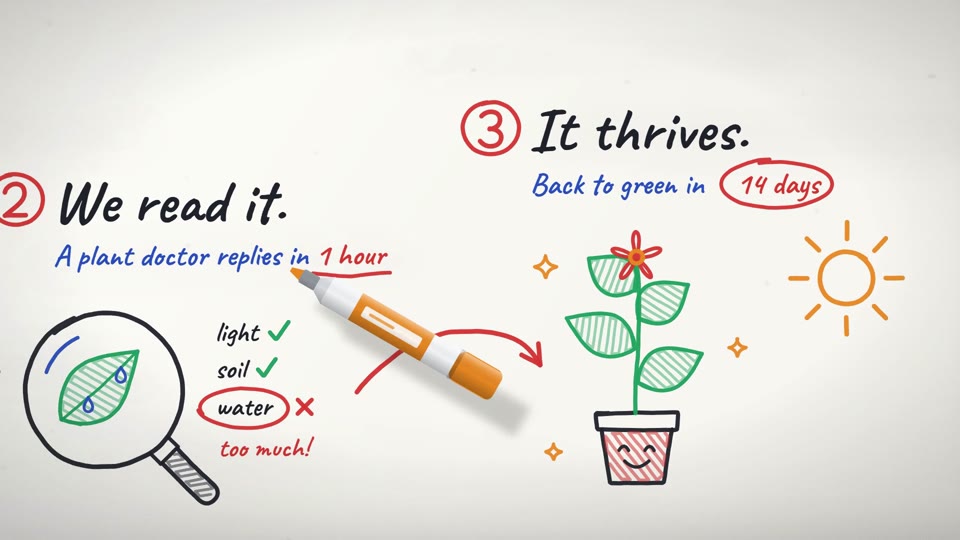
- Whiteboard explainer for walking through how something works:Whiteboard explainer for walking through how something works
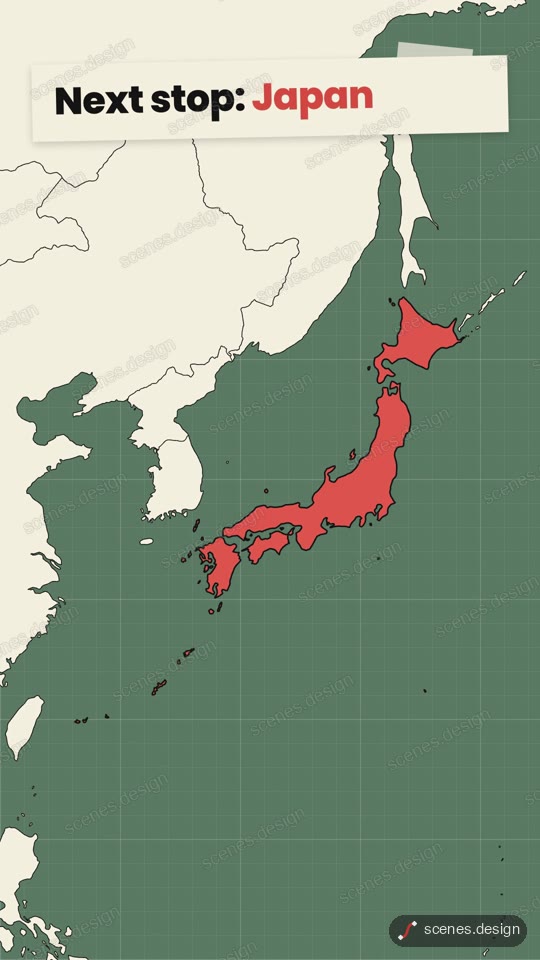
- Vertical globe zoom to open a geography or history story:Vertical globe zoom to open a geography or history story
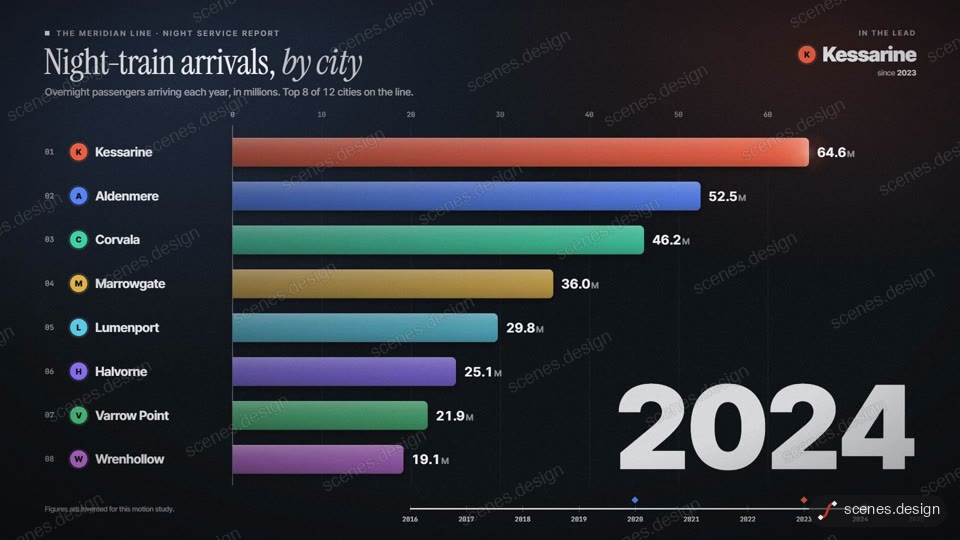
- Bar chart race for finance, population or ranking videos:Bar chart race for finance, population or ranking videos
- Kinetic typography for hooks, quotes and Shorts:Kinetic typography for hooks, quotes and Shorts
- Newspaper headline highlight for news and history channels:Newspaper headline highlight for news and history channels
- Ranked countdown for top 10 and list videos:Ranked countdown for top 10 and list videos
- 9:16 stats reel to cut into a Short
- Subscribe lower third with your channel name:Subscribe lower third with your channel name
Scenes to start from
- Whiteboard doodle explainer (widescreen 16:9)
- Globe zoom (vertical 9:16)
- Bar chart race (widescreen 16:9)
- Kinetic typography (vertical 9:16)
Step by step
Pick a niche and a look
Choose a subject you can research well and one visual style to keep across every video, such as maps and timelines for history or charts for finance.
Write the script and split it into beats
Draft it yourself or with an AI chatbot as an editor, fact-check it, and break it into beats of one idea each. Each beat becomes one scene.
Record or generate the voiceover
Record your own voice or use a text-to-speech tool whose licence allows monetised use. Keep the audio file next to your scenes.
Copy code on a scene for each beat
Press Copy code on a scene, or ask Claude Code to copy it with the Scenes skill or the MCP connector. Then tell Claude which words, numbers and colours to change, and ask it to time the beats to your narration.
claude mcp add --transport http scenes https://scenes.design/mcpRender the MP4 free
HyperFrames renders on your own computer with Node.js installed, as often as you like, with no watermark.
npx hyperframes render my-sceneEdit, upload and cut Shorts
Assemble scenes, voice and B-roll in a free editor, upload with chapters and a thumbnail, then ask Claude for a 9:16 version of your strongest scene for Shorts.
Questions
Can you make a faceless YouTube channel with AI for free?
Yes. Free chatbots help with scripts, free tiers or your own microphone cover the voice, Scenes lets free accounts copy 2 scenes a day, rendering is free on your own machine, and free editors handle assembly. Claude Code itself needs a paid Claude plan.
Are AI faceless channels allowed to make money?
AI tools are allowed, but YouTube's monetisation policy excludes reused content and mass-produced or repetitive videos. Original scripts, your own research and real creative choices are what count. No tool guarantees acceptance or earnings.
Do I have to disclose AI in my videos?
YouTube asks for disclosure when content is realistic and altered or synthetic, such as a realistic AI voice or footage that could pass as real. Animated graphics like charts and maps are generally not that kind of content, but check the current policy when you upload.
What are good faceless YouTube channel ideas?
Niches with a natural visual language work best: finance with charts, history with maps and timelines, explainers with diagrams, geography and country comparisons, and ranked top 10 lists.
Is there a watermark on Scenes videos?
No. You render the MP4 yourself with HyperFrames, so there is no watermark, and commercial use is included.
What is the difference between Copy code and Copy prompt?
Copy code gives you the exact scene to edit, so it looks the same every time. Copy prompt has Claude rebuild it from scratch, which comes out close but not identical and works best on Opus.