How to make an animated infographic
To make an animated infographic, start from an explainer or chart scene, give Claude your facts, steps and numbers in plain English, and render the MP4 with npx hyperframes render. Each fact gets its own beat, so the video explains one thing at a time.
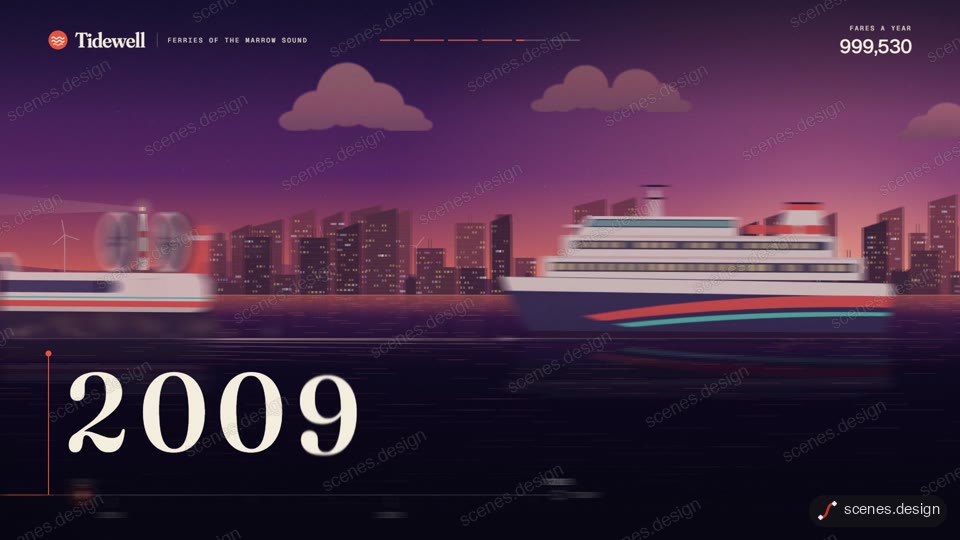
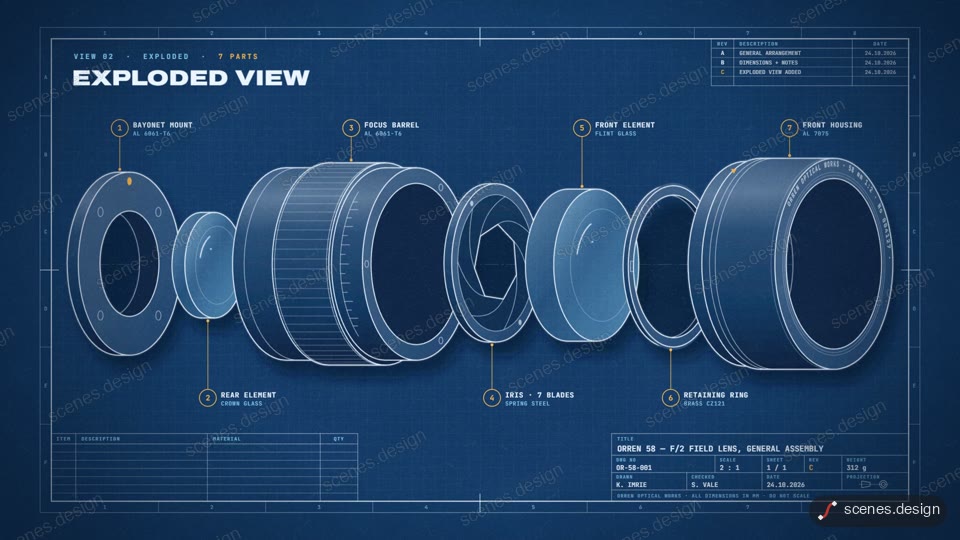
Infographic animation works when each fact arrives on its own. The Explainers scenes are built that way: an isometric diagram on cream paper, a history timeline the camera travels along, a blueprint that explodes into labelled parts, a step-by-step recipe, a whiteboard doodle and a clay-style explainer.
Pick by the shape of your information. A sequence of events suits the timeline, parts of a product suit the blueprint, a process suits the recipe or the isometric diagram, and numbers suit the Charts scenes.
Scenes to start from
- Isometric (widescreen 16:9)

- History timeline scroll (widescreen 16:9)
- Blueprint exploded view (widescreen 16:9)
- Recipe step explainer (vertical 9:16)

Step by step
Open the History timeline scroll scene and copy it
Open History timeline scroll in the Scenes Library and press Copy prompt. You get the prompt that made the scene; Copy code gives its HyperFrames code. Browsing is free, and free accounts can copy 2 scenes a day.
Paste it into Claude or Claude Code
Paste the prompt into claude.ai or the Claude app to see the scene build as a live preview. For an MP4 you need Claude Code: paste the prompt there, or set up the Scenes skill once (see Docs) and pull the scene into a folder.
node ~/.claude/skills/scenes-library/pull.mjs history-timeline my-infographicChange the words in plain English
Give your content: "the story of our bakery from 2012 to today in six milestones: 2012 first oven, 2015 second shop, ...". Keep each label short; Claude fits them to the layout.
Check it and render the MP4
HyperFrames renders the MP4 on your own computer, free, as often as you like. You need Node.js installed. Check first: it reports anything off-frame or broken.
npx hyperframes check my-infographic
npx hyperframes render my-infographic
Questions
What is an animated infographic?
An infographic whose parts appear in order, with motion that points at what matters. It suits social posts, explainers and presentations.
Can I make one for free?
Browsing and previewing every scene is free, and free accounts copy 2 scenes a day. The render is free because HyperFrames makes the MP4 on your own computer, with no watermark on the video.
Can I add a voiceover?
Render the MP4 and add your voice in your editor. Ask Claude Code to stretch or shorten each beat so it lines up with what you say.
Do I need design software?
No. Scenes are HTML, CSS and JavaScript (HyperFrames code). Claude edits them from plain English and HyperFrames renders them to MP4. You never open a timeline.