Interactive lessons: 10 ideas to make lessons more engaging for students
The quickest way to make interactive lessons, and lessons more engaging, is to give students something to do with what they see: predict, guess, vote, call out or explain. Short animated explainers make that easy. Pause a science diagram before the key moment, ask which country is bigger before a map reveal, or bet on a bar chart race, and you can make each video free with Claude and Scenes.
1. Open with a 20 second hook
Start the lesson with a short, dramatic title film instead of the learning objective on a slide. The first minute decides whether the class leans in. A bold question in big type gets more attention than a bullet point.
Example: Year 8 history at Hollins Park Academy opens with 'One day in 1066. Three kings. One survivor.' before a word is said.
The video: Documentary teaser, with your lesson question as the title
2. Pause and predict
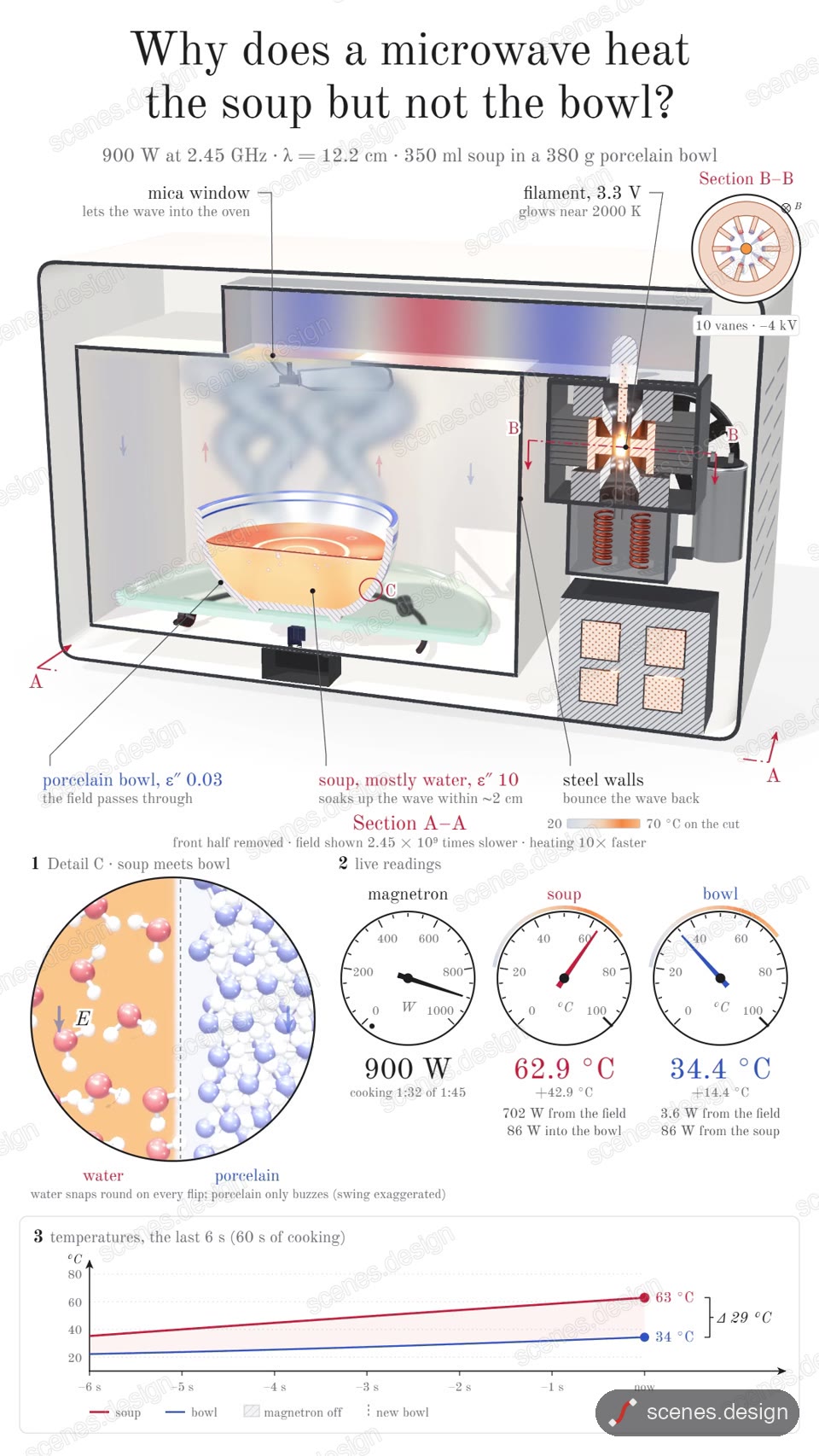
Play an animated diagram, pause it just before the key moment and ask the class what happens next. Then press play. Committing to a guess makes students care about the answer, and the ones who got it wrong remember the correction.
Example: Year 9 physics at Ashgrove School pauses the microwave cutaway as the waves reach the food: 'Why does the middle stay cold?'
The video: Microwave science diagram
3. Guess the map
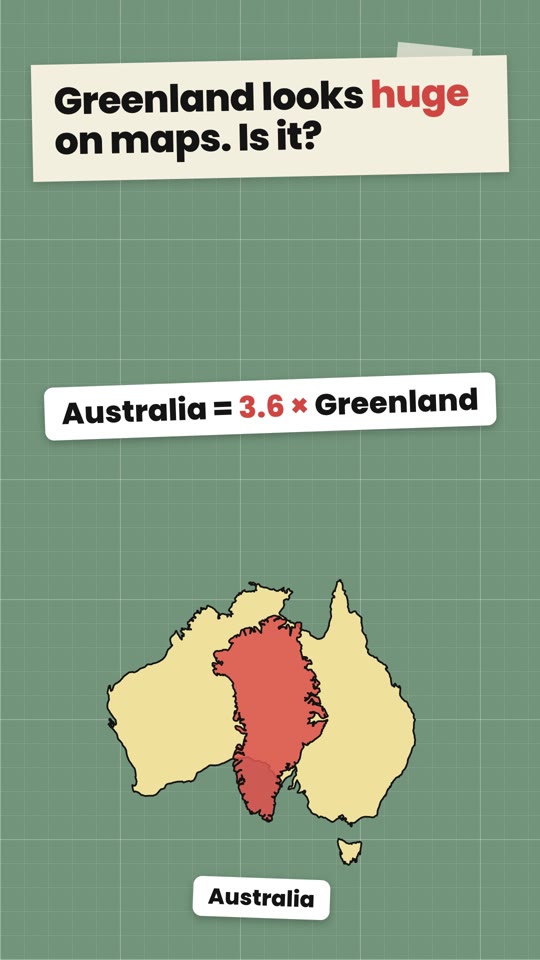
Show two places on a map and ask which is bigger, further or older, then let the animation settle the argument. Maps surprise people. Arguing before the reveal turns a fact into a story students repeat at home.
Example: Year 7 geography at Millbrook High votes on whether Greenland is bigger than Africa, then watches the true sizes slide side by side.
The video: Country size comparison
4. A timeline that builds itself
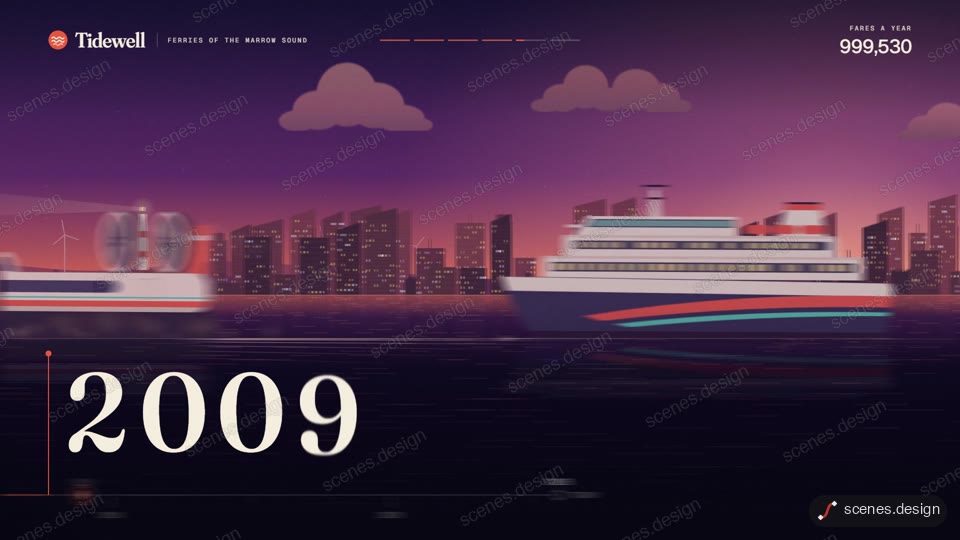
Animate key dates one at a time, and stop at each one for a quick 'cause or consequence?' question. Students see order and gaps at a glance, which a list of dates in a textbook never shows.
Example: Year 10 history at St Aldric's builds the causes of the First World War from 1882 to 1914, one event per click.
The video: Company history timeline, with your dates and events
5. Data that races
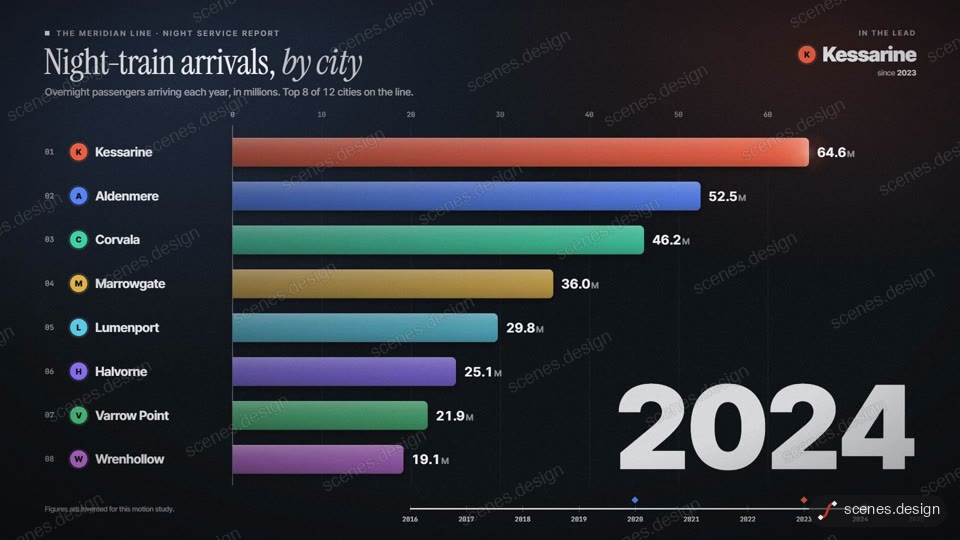
Turn a dataset into a bar chart race and ask students to bet on the winner before it plays. Numbers on a table are flat. Numbers that move and overtake each other get a cheer, and the class reads the axis without being asked.
Example: Year 8 maths at Fernside Academy races the populations of five countries from 1950 to 2025, then works out the percentage change.
The video: Bar chart race
6. Word of the week in motion
Introduce one new word a week with a 10 second kinetic type card: the word, how to say it and one sentence that uses it. Words that move and land on the beat stick better than words on a poster, and the short clip is easy to replay at the start of every lesson.
Example: Year 4 English at Ashgrove Primary meets 'reluctant' on Monday and hunts for it in their reading book all week.
The video: Kinetic typography, one word per card
7. Poems with the words on screen
Read a poem aloud and time each line or word to appear as it is spoken, then mute it and have students perform it. Seeing rhythm and line breaks while hearing them helps students notice what a poet is doing with sound.
Example: Year 10 English at Hollins Park Academy watches 'Remains' with each line landing on the reader's voice, then performs a stanza in pairs.
The video: Spoken word kinetic type, timed to your recording
8. Show the real scale
Use a zoom or dive to make huge or tiny numbers feel real, and ask students to call out when they think you have reached the answer. Kids cannot picture 11 km deep or a millionth of a metre. A journey through the scale makes the number mean something.
Example: Year 6 science at Brookfield Primary shouts 'stop!' when they think the dive has reached the deepest point of the ocean.
The video: Ocean depth dive to the trench
9. Inside the cell, moving
Show biology processes moving instead of as a still labelled diagram, then have students narrate the film in their own words. Processes are things that happen. Watching them happen, then explaining them aloud, is a quick check of real understanding.
Example: A level biology at Kingsway Sixth Form watches a motor protein carry its cargo along a microtubule, and each student narrates 20 seconds.
The video: Motor protein walks its cargo
10. Let the class write the next one
Give the class 5 minutes to write the script for a short explainer on today's topic, then paste their lines into Claude and play the result next lesson. Students who wrote the words watch closely, check the facts and argue about what is missing, which is the revision you wanted.
Example: Year 9 RE at Millbrook High writes a 6 line explainer on the Five Pillars of Islam and sees it as a whiteboard animation on Thursday.
The video: Whiteboard doodle explainer, with the class's lines
Keep every video under a minute. One idea per clip, big text that reads from the back of the room, and a 16:9 version for the classroom screen. The pause is where the learning happens, so plan your question before you press play.
Free accounts can preview every scene and try one. Each scene gives you two ways in. Copy code gives you the exact film you see in the preview and uses almost no Claude usage, because Claude only changes the words and colours. Copy prompt has Claude build the scene again from the prompt that made it; it uses more usage and the result can differ from the preview.
Scenes to start from
- Microwave science diagram (vertical 9:16)
- Country size comparison (vertical 9:16)
- Company history timeline (widescreen 16:9)
- Bar chart race (widescreen 16:9)
Step by step
Pick one moment in the lesson
Choose the point where students usually switch off or get confused: the opening, a tricky process, a set of dates or a page of numbers. Write the one question you will ask during the pause.
Copy a scene
Open a scene that fits, such as Microwave science diagram or Country size comparison, in the Scenes Library and press Copy code (you can try one free).
Tell Claude what to change
Paste it into Claude Code and ask in plain English, for example: "Year 9 physics. Change the labels to 'microwaves', 'water molecules' and 'heat'. Slow it down so the class can read every label. 16:9 for a classroom screen, 40 seconds."
Render the MP4 free
Claude renders the video on your own computer with HyperFrames. No subscription to a video tool and no watermark.
npx hyperframes check lesson-video
npx hyperframes render lesson-video
Teach with the pause
Drop the MP4 into your slides. Play, pause at the key moment, ask your question, take answers or a show of hands, then press play to reveal.
Questions
How can I make my lessons more engaging for students?
Give students something to do in every part of the lesson: predict, vote, guess, call out or explain. Open with a hook, connect the topic to their lives, and use short visuals that move, such as maps, timelines and diagrams, with a pause for a question before the reveal.
How do I make a lesson interactive?
Build in moments where students have to respond before they find out the answer. Pause and predict, mini whiteboard votes, guess the map, bet on the chart and narrate the video in your own words all work with nothing more than a projector.
How do I make animated videos for teaching for free?
Copy a finished scene from Scenes, paste it into Claude or Claude Code, ask for your own words and labels, and render the MP4 on your computer with HyperFrames. A free Scenes account lets you try a scene.
How long should an educational video be for a lesson?
Under a minute for a single idea, and no more than 2 or 3 minutes in total. Short clips keep attention and leave time for the pause, the question and the discussion.
Can I use AI to make my lesson videos?
Yes. Claude can change the text, labels, colours and timing of a ready-made animated scene from a plain English request, so you get a custom explainer without learning animation software.
What is the difference between Copy code and Copy prompt?
Copy code gives you the exact film in the preview and uses almost no Claude usage. Copy prompt asks Claude to build the scene again from its prompt, which uses more usage and can give a different result.