Claude connectors: add Scenes to Claude and get motion graphics in seconds
Scenes is now in Claude's official connector directory, so adding it takes seconds. In claude.ai or the Claude app, open Customize (Settings in some versions), then Connectors, search for "Scenes", click Connect and sign in with your Scenes account. Then ask Claude for a scene, for example "find me a globe that zooms into Japan".
Scenes in Claude: ask for a video, get a finished scene
A connector lets Claude use another service while you chat. The Scenes connector gives Claude the whole Scenes Library: more than 300 finished motion-graphics scenes (maps, charts, kinetic text, product launches, 3D and explainers) and 30 visual styles. Each scene is the exact film you see in the Library, as HyperFrames code, with the prompt that made it.
Once it is connected, Claude can do six things for you. It can search the Library and list its categories. It can preview a scene, showing you the poster, the video and its page, and a preview is free. It can copy a scene into your project: the prompt and the code, to use as it is or to change the words, numbers, colours and logos. It can remix a copy into a new video on your own subject in the same style, keeping the timing and look. It can read one of the 30 styles, such as hand-inked cartoon or engraved map collage, and make a new, original video in that look; reading a style is free. And it can explain how to render the MP4.
Scenes is a library of finished code, not an AI video generator. No AI model runs on our side when Claude calls the connector, and nothing is generated for you there. Claude does the editing, and you make the MP4 on your own computer with HyperFrames, which is free and open source.
In claude.ai and the Claude app, Claude can show a scene as a live animated preview in the chat. To export an MP4 you need a terminal, which is where Claude Code comes in. Add the same connector to Claude Code with one command, and Claude can write the scene into a folder, edit it and render it for you.
You sign in with your Scenes account, so there is no API key to paste. Copies made through Claude count the same as copies made on the website; your plan sets how many you get. Pro scenes copy on the Creator Pro and Studio plans.
Scenes to start from
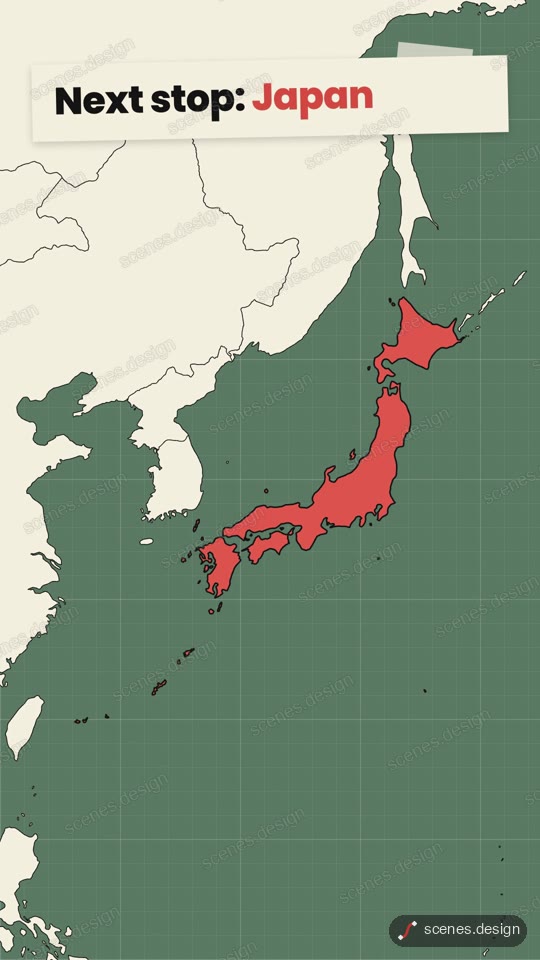
- Globe zoom (vertical 9:16)
- Whiteboard doodle explainer (widescreen 16:9)

- Fast-cut SaaS launch film (widescreen 16:9)

Step by step
Open Connectors in Claude
In claude.ai or the Claude desktop app, open Customize (called Settings in some versions) and go to Connectors.
Search for Scenes and click Connect
Search the directory for "Scenes" and click Connect. If it does not appear, choose Add custom connector and paste the address below instead.
https://scenes.design/mcpSign in with your Scenes account
A Scenes page opens. Sign in (or make a free account), check that it names Claude, and click Allow. You are sent back to Claude, connected.
Ask Claude for a scene
Try: "find me a map scene that zooms into Japan and show me a preview". Then: "copy it and change the country to Kenya", or "read the hand-inked cartoon style and make a 15 second intro for my bakery in that look".
In Claude Code, add it with one command
Run this in a terminal, then type /mcp inside Claude Code, pick scenes and sign in through the browser. Claude Code can then copy a scene into your project folder.
claude mcp add --transport http scenes https://scenes.design/mcpRender the MP4 on your machine
In the scene folder, check it and render. HyperFrames makes the MP4 on your own computer, free, as often as you like. You need Node.js 20 or newer. Or just ask Claude Code to do it.
npx hyperframes check
npx hyperframes render --output out.mp4
Questions
What is a Claude connector?
A connector links Claude to another service through MCP (Model Context Protocol), so Claude can use that service's tools while you chat. Connectors in Claude's directory are added with a click and a sign-in instead of a manual setup.
Can Claude make videos with the Scenes connector?
Yes. Claude finds and copies a finished scene, edits it or remixes it for your subject, and you render the MP4 with HyperFrames on your own computer. In claude.ai you get a live preview; the MP4 export needs a terminal, so use Claude Code for that.
Is the Scenes connector free?
Connecting, searching, previewing scenes and reading styles cost nothing. Copying a scene uses one of your plan's copies, the same as on the website. Rendering is free because HyperFrames runs on your own machine. See the Pricing page for the plans.
Scenes doesn't show up when I search Connectors. What now?
Choose Add custom connector, paste https://scenes.design/mcp, then click Connect and sign in. It is the same connector. On a Team or Enterprise plan, an owner may need to allow connectors first.
It says it couldn't connect, or Claude stopped using Scenes.
Remove Scenes from your connectors, add it again and sign in. In a chat, make sure the Scenes tools are switched on for that conversation, then ask again and mention Scenes by name.
Claude says I'm out of copies or a scene is Pro.
Out of copies means your plan's copies for the month are used up. Pro scenes copy on the Creator Pro and Studio plans. Previews and styles still work either way.
How do I disconnect Scenes?
Remove it in Claude's connector settings, or run claude mcp remove scenes in Claude Code. Then, if you like, revoke the "Claude connector" key on the Scenes Docs page after signing in.
Does Scenes see my chats?
No. Claude only sends the Scenes connector what a tool needs, such as your search words or a scene id. Scenes does not read your conversation.
Do I need the Scenes skill as well?
No. The connector covers search, preview, copy and styles in claude.ai, the Claude app and Claude Code. The Scenes skill is another way to pull scenes into Claude Code, and it keeps working if you already use it.